---
title: "Example LaGriT Page"
author: My Name
tags: example, quickstart
categories: quickstart
---
# LaGriT Style Guide #
------------------------------------
In an effort to maintain consistency across the GitHub Pages implementation of LaGriT documentation, this document is a style guide for readers and developers.
This page uses HTML to format box sections to show raw text and the resulting format. Use
```
sample format written to show the raw page text
sample to show how format will appear on page
```
<b>sample</b> format written to show the raw page text
sample to show how format will appear on page
## Table of Contents
1. [Page Titles and Headers](#pagetitles)
2. [Command Formatting](#cmdformatting)
3. [Inline Code, Examples, Demos](#inlinecode)
4. [Linking to Other Pages](#linking)
5. [Long Page Lists](#longpagelists)
6. [Embedding Images](#embeddingimages)
7. [Further Resources](#resources)
## 1. Page Headers & Titles
Each page should contain YAML-formatted metadata at the top of the document.
See [GitHub's announcement](https://blog.github.com/2013-09-27-viewing-yaml-metadata-in-your-documents/) and a [basic guide on supported tags](https://hackmd.io/s/yaml-metadata#tags).
In general, most metadata will do nothing.
However, each document should contain at least these specifiers:
1. `title` - this renders as the browser page title, and renders in search
2. `tags` - this benefits the search functionality as well
---
title: "Example LaGriT Page"
author: My Name
tags: example, quickstart, style
---
Page titles should use the `h1` header class followed by a page line, note the # character must not have spaces in front.
Subsections should be marked with `h2`, subsubsections with `h3`, etc.
# COMMAND or Page Title

------------------------------------

Page text

## Section Header
COMMAND or Page Title
Page text
Section Header
## 3. Command Syntax and Descriptions
The LaGriT command syntax section should be enclosed in the tags. Use the HTML bold formats for the command name and any literal keywords.
<pre>
<b>extract/surfmesh</b>/1,0,0/cmo_out/ [cmo_in] [<b>external</b>]
</pre>
extract/surfmesh/1,0,0/cmo_out/ [cmo_in] [external]
In the sections describing words and behavior of the command, the following formats should be followed:
In general, use **`bold monospaced font`** for commands and methods, **bold** for keywords or reserved words, and `unstyled monospace` for primary variable names. The italics *`italic variable`* as needed for additional variables. The general *italic* is for use in text for notes or references.
The following are used for a command syntax and description:
| Appearance | Markdown Text |
| :--------------------------- | :------------------------------------ |
| [**`COMMAND link`**]() |``` [**`COMMAND`**](file.md) ```|
| **`COMMAND`** |``` **`COMMAND`** ```|
| **`method`** |``` **`method`** ```|
| `variable` |``` `variable` ```|
| **keyword** |``` **keyword** ``` |
| [**keyword_link**]() |``` [**keyword_link**](file.md) ``` |
| [plain link]() |``` [plain link](file.md) ``` |
| *`italic variable`* |``` *`italic variable`* ```|
| *italic text* |``` *italic text* ```|
## 3. Inline Code, Examples, Demos
Command pages may include additional sections. Any inline Code, Examples, or Demos use fenced code blocks and should be wrapped in three backticks. The backticks will format much the same way as the HTML tags.
```
This is an inline code block with 3 backticks before and after.
```
To display screen output, use the tag instead of backtics or other tags.
This is a block for screen output.
## 4. Linking to Other Pages
You can link to other pages on this site by either using the literal URL, or (more appropriately) with a relative link to the corresponding Markdown file. It is better practice to use a relative link to a Markdown file, so that those attempting to read the documentation through a Markdown viewer (i.e. after cloning the LaGriT repo) will be able to easily access the referenced document.
As an example, [this page](https://lanl.github.io/LaGriT/pages/docs/commands/ADDMESH.html)
will take you to the same place as [clicking here](docs/commands/ADDMESH.md).
## 5. Long Page Lists
For pages with a long list of command options, use a clickable table at the top.
See examples at dump
Table format with page links. The colon on left will make cells left justified. Use colons on both sides to center.
Add explicit spaces to avoid cell text running into adjacent cell text.
```
| | | | |
| :---- | :---- | :---- | :---- |
| [**`chad`**](#chad) | [**`coord`**](#coord) | [**`datex`**](#datex) | [**`elem_adj_node`**](#elem_adj) |
...
### **`chad`**
```
## 6. Embedding Images
Below are multiple ways to embed images in a Markdown file.
Note that relative paths are relative to LaGriT/docs/pages/docs/commands/.
Set Image sizes for a page between 250 and 500.
Embed with html
<img width="500" src="https://lanl.github.io/LaGriT/assets/images/cube.png">
Using href will make a small image clickable to the full image:
<a href="cube.png"> <img width="300" src="cube.png"> </a>
Embed with markdown
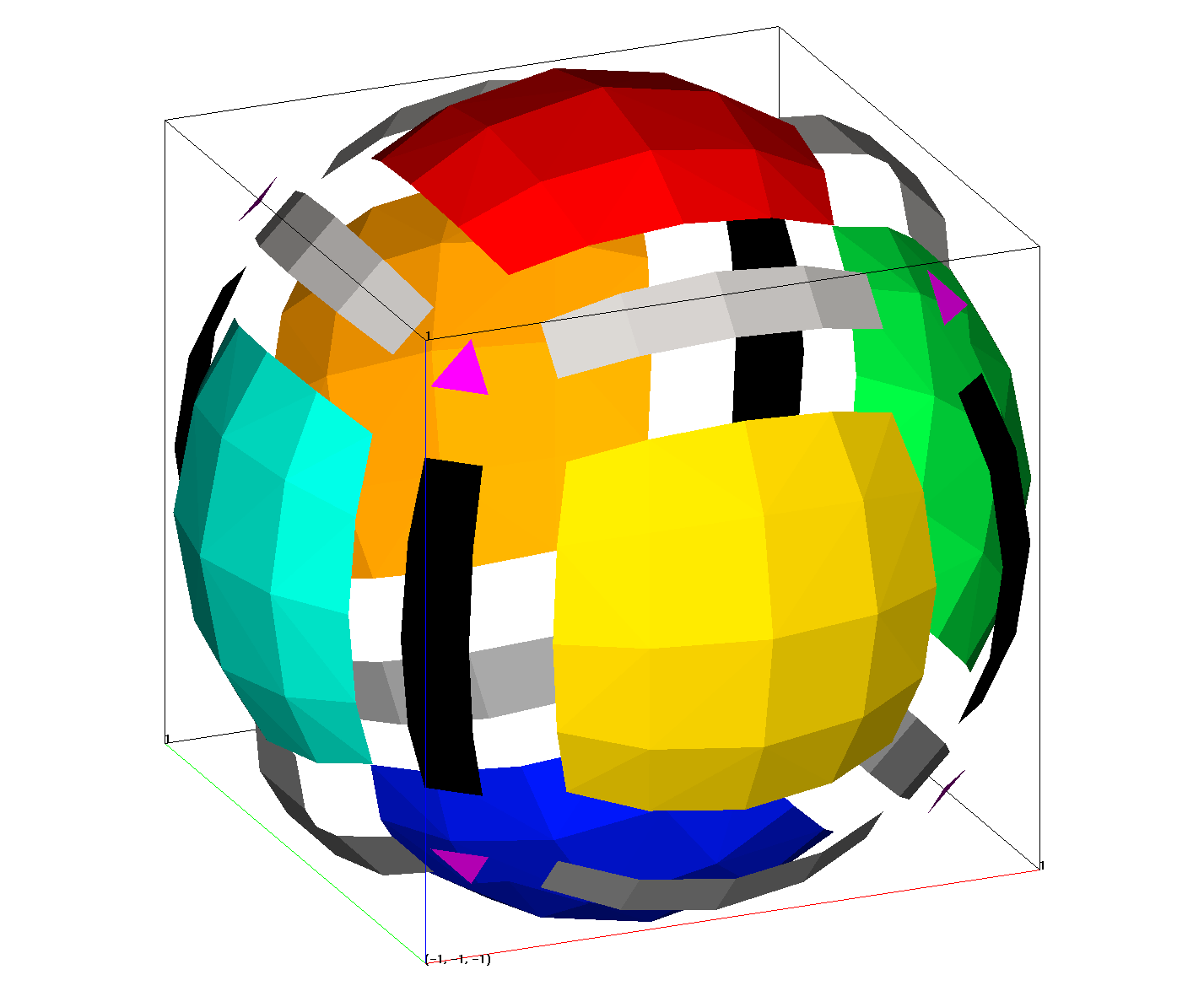
<img src="{{'assets/images/cube.png' | absolute_url}}" width="500">


## 7. Further Resources
Markdown supports tables, lists, embedded HTML/Javascript/CSS, images, and more.
For syntax usage on embedding these elements, a few references can be found below:
* [Markdown Quick Cheatsheet (Common Mark)](https://commonmark.org/help/)
* [Mastering Markdown (GitHub)](https://guides.github.com/features/mastering-markdown/) - basic Markdown syntax overview
* [Markdown Cheatsheet (assemble.io)](http://assemble.io/docs/Cheatsheet-Markdown.html) - discusses the relationship between Markdown elements and HTML
